
The AI Reply Agent automatically handles conversations after a prospect replies to your outreach. Instead of manually responding to every LinkedIn or email reply, you can let AI draft responses for your approval or allow it to reply automatically while working toward a specific goal.
Unlike campaign settings, Reply Agents are created once and can be reused across multiple campaigns. You define the agent's goal, personality, tone, product knowledge, and reply behavior in one place, then choose how much autonomy it has for each campaign.
What can the AI Reply Agent do?
The Reply Agent helps you:
Respond to LinkedIn and email replies automatically.
Draft contextual responses using the entire conversation history.
Maintain a consistent tone and messaging across campaigns.
Work toward a specific conversation goal.
Operate in Manual, Co-pilot, or Auto-pilot mode.
Reuse the same AI agent across multiple campaigns.
Before you begin
Before using Reply Agent:
Create at least one AI Product under AI Personalization (optional but recommended).
Decide how you want the AI to interact with prospects.
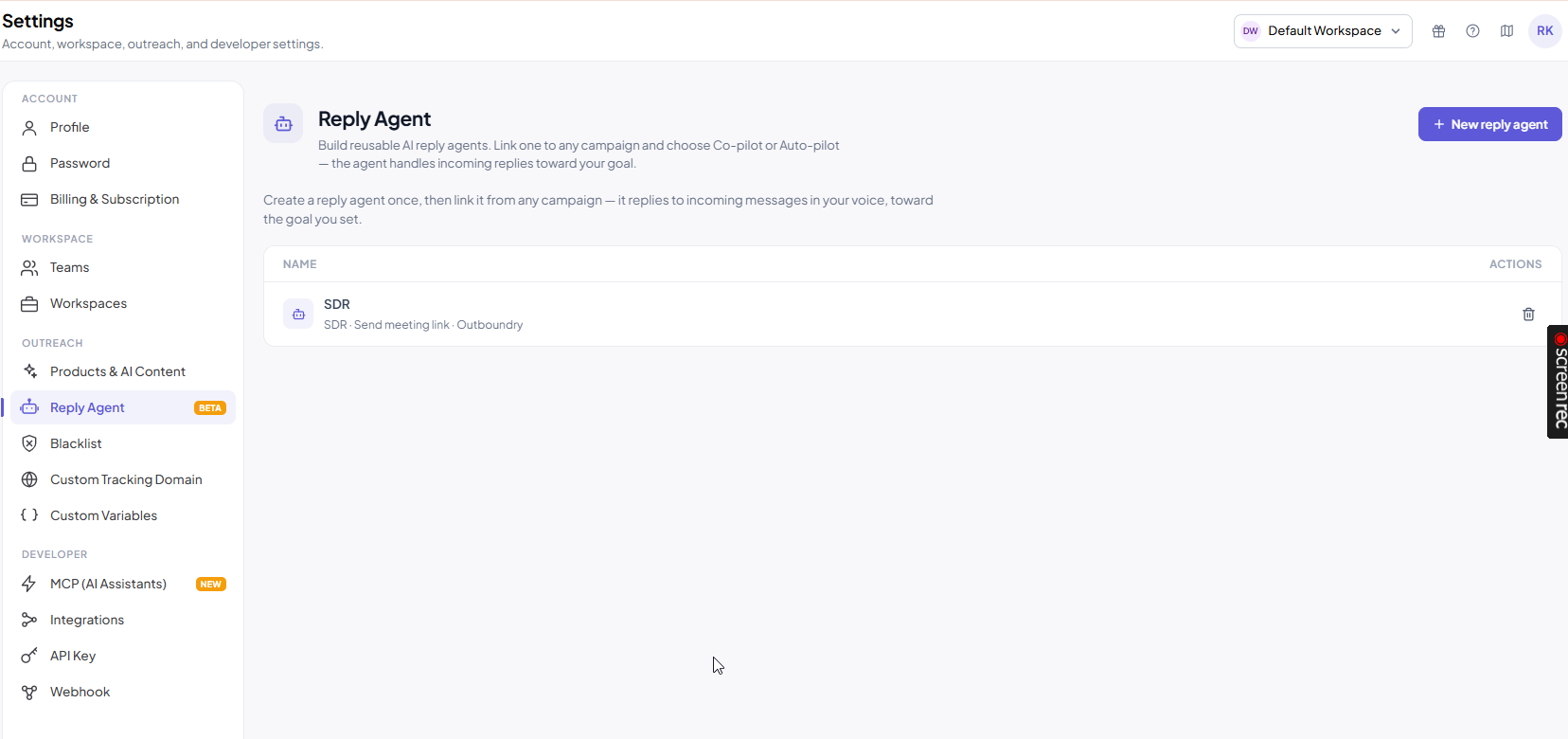
Create your first Reply Agent from Settings.
Create a Reply Agent
Navigate to:
Settings → Reply Agent
Click Create Reply Agent.
Configure your Reply Agent
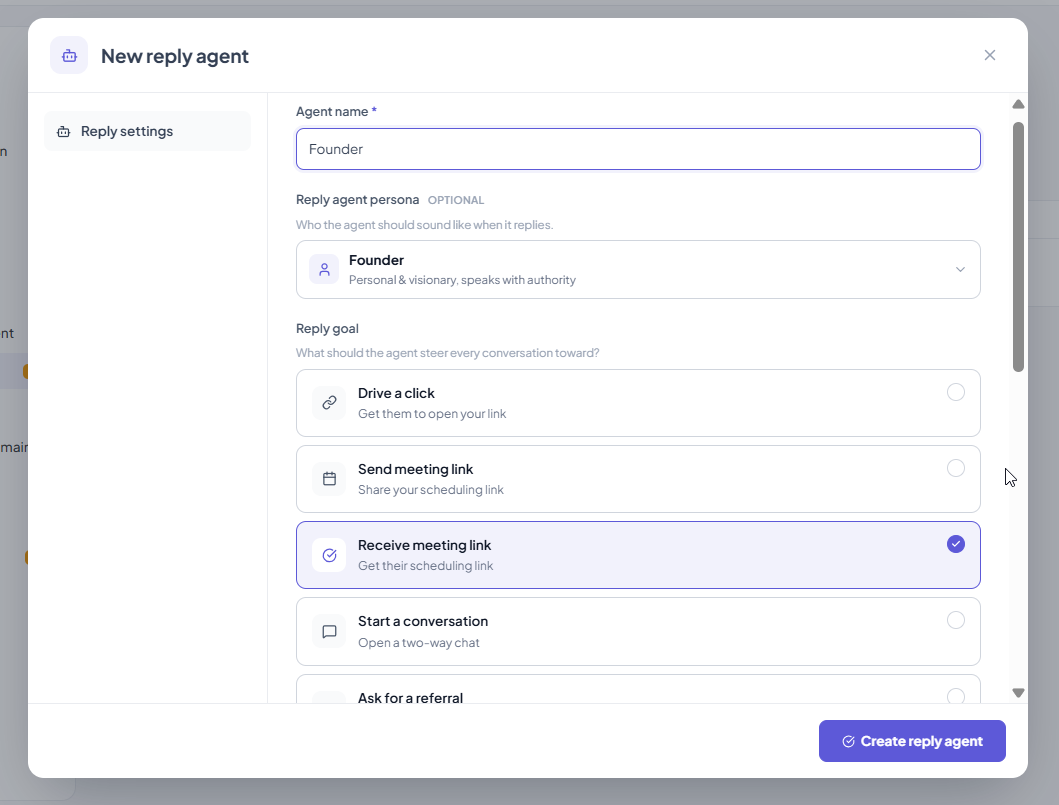
When creating an agent, you'll configure the following settings.
Agent Name
Give your Reply Agent a descriptive name.
Examples:
Founder Outreach
SDR Assistant
Enterprise Sales
Customer Success
The name helps identify the agent when assigning it to campaigns.
Persona
Choose how the AI should represent itself during conversations.
Available personas include:
Founder
SDR
Solutions Engineer
Customer Success
No Specific Persona
Each persona influences how the AI communicates with prospects.
Reply Goal
Every Reply Agent works toward a single conversation goal.
Available goals include:
Drive a Click
Encourage prospects to visit a specific destination.
You can provide:
Website
Pricing Page
Webinar
Sign-up Page
Custom Link
Send Meeting Link
Share your scheduling link and encourage prospects to book a meeting.
Receive Meeting Link
Encourage the prospect to share their scheduling link.
Start a Conversation
Focus on building engagement rather than asking for a meeting.
Ask for a Referral
Encourage prospects to introduce you to the appropriate decision-maker.
Choose the goal that best matches your outreach strategy.
Linked AI Product (Optional)
If you've configured products under AI Personalization, select the product you'd like this Reply Agent to use.
This helps ensure replies remain consistent with your product positioning and messaging.
Tone and Language
Choose how the AI should communicate.
Examples of available tones include:
Friendly
Professional
Curious
Direct
Confident
You can also choose the language used for replies.
AI Model
Select the AI model used to generate replies.
Different models consume different numbers of AI credits.
The selected model determines both response quality and credit usage.
Reply Timing
Configure a minimum and maximum delay before replies are sent.
For example:
Minimum: 3 minutes
Maximum: 20 minutes
Outboundry randomly selects a time within this range to make conversations appear more natural.
Note: Reply timing is always randomized and cannot be disabled.
Additional Instructions (Optional)
Provide extra guidance for the AI.
Examples include:
Never offer discounts.
Escalate pricing questions to a human.
Keep replies under 100 words.
Mention customer success stories.
Avoid technical jargon.
These instructions are applied to every generated reply.
Save your Reply Agent
Once you've finished configuring the agent, click Save.
The Reply Agent becomes available for all campaigns in your workspace.
Assign a Reply Agent to a Campaign
Navigate to:
Campaign → Settings
Choose one of the available reply modes.
If you select Co-pilot or Auto-pilot, you'll be prompted to choose one of your saved Reply Agents.
The same Reply Agent can be used across multiple campaigns.
Reply Modes
Every campaign controls how much autonomy the Reply Agent has.
Manual
In Manual mode, the Reply Agent is disabled.
You write and send every reply yourself.
This is the default mode for all campaigns.
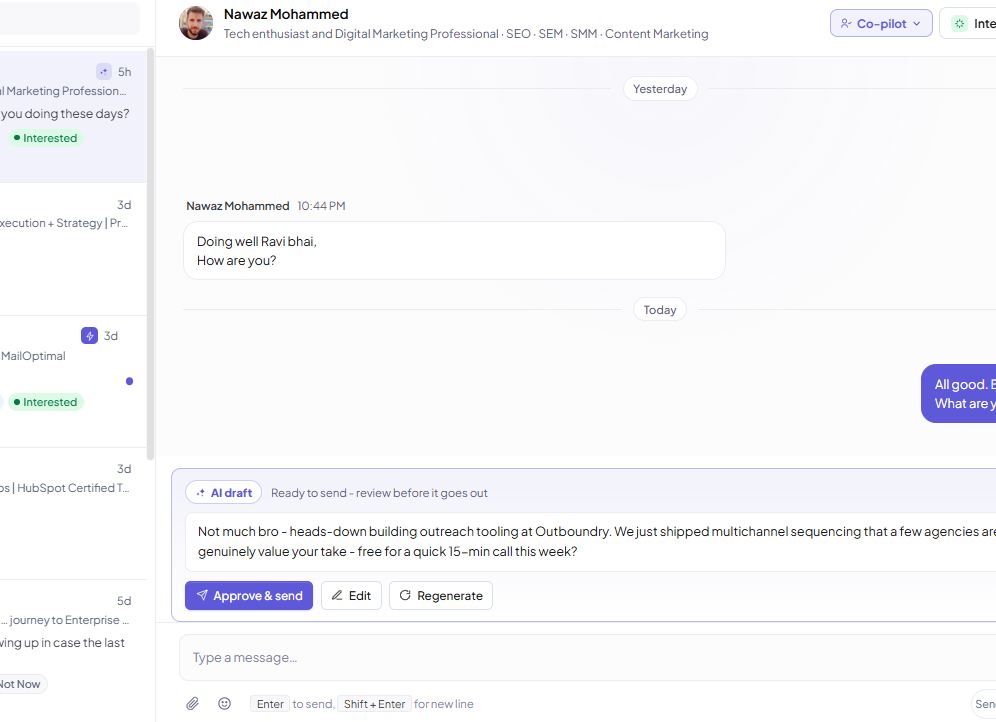
Co-pilot (Recommended)
Co-pilot is the recommended option for most teams.
When a prospect replies:
AI reads the conversation.
AI generates a draft.
The draft appears in your Unified Inbox.
You review the reply.
Approve, edit, regenerate, or dismiss it.
Nothing is sent without your approval.
Auto-pilot
In Auto-pilot mode:
AI generates replies automatically.
Replies are sent after the configured timing delay.
Conversations continue automatically until the configured goal is achieved.
This mode is ideal for handling routine conversations at scale.
How the Reply Agent Works
Whenever a prospect replies:
Step 1
The reply arrives in the Unified Inbox.
Supported channels include:
Email
LinkedIn
Step 2
The Reply Agent analyzes:
Previous conversation history
Prospect information
Campaign context
Linked product
Agent instructions
Step 3
AI generates a reply.
Generating a reply consumes AI credits.
Step 4
The selected reply mode determines what happens next.
Manual
No AI action is taken.
Co-pilot
A draft is created for your approval.
Auto-pilot
The reply is queued and automatically sent after the configured delay.
Step 5 (Co-pilot only)
For AI-generated drafts, you can choose to:
Approve
Edit
Regenerate
Dismiss
Step 6
The conversation continues until:
Your configured goal is achieved.
You manually take over the conversation.
Override Reply Mode for Individual Conversations
You can change the reply mode for a single conversation without affecting the campaign.
Open any conversation in the Unified Inbox and update the Reply Agent mode for that thread.
This is useful when:
A high-value prospect needs personal attention.
A conversation becomes more complex.
You want Auto-pilot for only certain conversations.
Manage Auto-pilot Conversations
When Auto-pilot is active, the conversation displays an Auto-pilot banner.
If you want to stop automatic replies:
Click Turn Off.
The conversation switches to Co-pilot, allowing AI to continue drafting responses while requiring your approval before sending.
AI Credits
Each AI-generated reply consumes AI credits.
The exact number of credits depends on the selected AI model.
Additional actions such as Regenerate also consume AI credits because a new response is generated.
Managing Reply Agents
From Settings → Reply Agent, you can:
Edit existing agents
Duplicate agents
Delete agents
See how many campaigns are using each agent
Note: If you delete a Reply Agent currently assigned to campaigns, those campaigns automatically switch back to Manual mode.
Best Practices
Start with Co-pilot before enabling Auto-pilot.
Configure a detailed product profile using AI Personalization.
Write clear additional instructions.
Use realistic reply timing.
Review AI-generated conversations regularly.
Use Auto-pilot primarily for routine conversations.
Switch important conversations to Manual whenever necessary.
Frequently Asked Questions
Can I use one Reply Agent across multiple campaigns?
Yes. Reply Agents are created once and can be assigned to any number of campaigns.
What's the difference between Co-pilot and Auto-pilot?
Both generate AI replies.
Co-pilot creates drafts that require your approval before sending.
Auto-pilot sends replies automatically after the configured delay.
Can I change the reply mode for one conversation?
Yes.
You can override the campaign's reply mode for an individual conversation directly from the Unified Inbox.
Can I edit AI-generated replies?
Yes.
In Co-pilot mode, every draft can be:
Approved
Edited
Regenerated
Dismissed
Does Reply Agent work with both LinkedIn and email?
Yes.
The Reply Agent works across both channels through the Unified Inbox.
Are AI-generated replies identified?
Yes.
Messages generated by the Reply Agent are marked as AI-generated within the conversation.
What happens if I delete a Reply Agent?
Campaigns using that Reply Agent automatically switch back to Manual mode until another Reply Agent is assigned.
Does regenerating a reply consume credits?
Yes.
Every newly generated reply, including regenerated drafts, consumes AI credits.