The Pipeline is Outboundry's built-in CRM that helps you manage leads and opportunities throughout your sales process. Instead of exporting leads to another CRM, you can track conversations, update deal stages, and manage your pipeline directly inside Outboundry.
Every workspace comes with a default pipeline, and your outreach activities stay automatically synced with your CRM.
What you can do with the Pipeline (CRM)
Using the Pipeline, you can:
Track every lead from first contact to closed deal.
Organize opportunities into different sales stages.
Drag and drop deals between stages.
Search, filter, and group deals.
Add notes and review activity history.
Manage deals individually or in bulk.
Export your pipeline to CSV.
The Pipeline and Unified Inbox work together, so a lead's stage stays consistent across both views.
Access the Pipeline
From the left navigation menu, click Pipeline.
You'll see two different views of the same data:
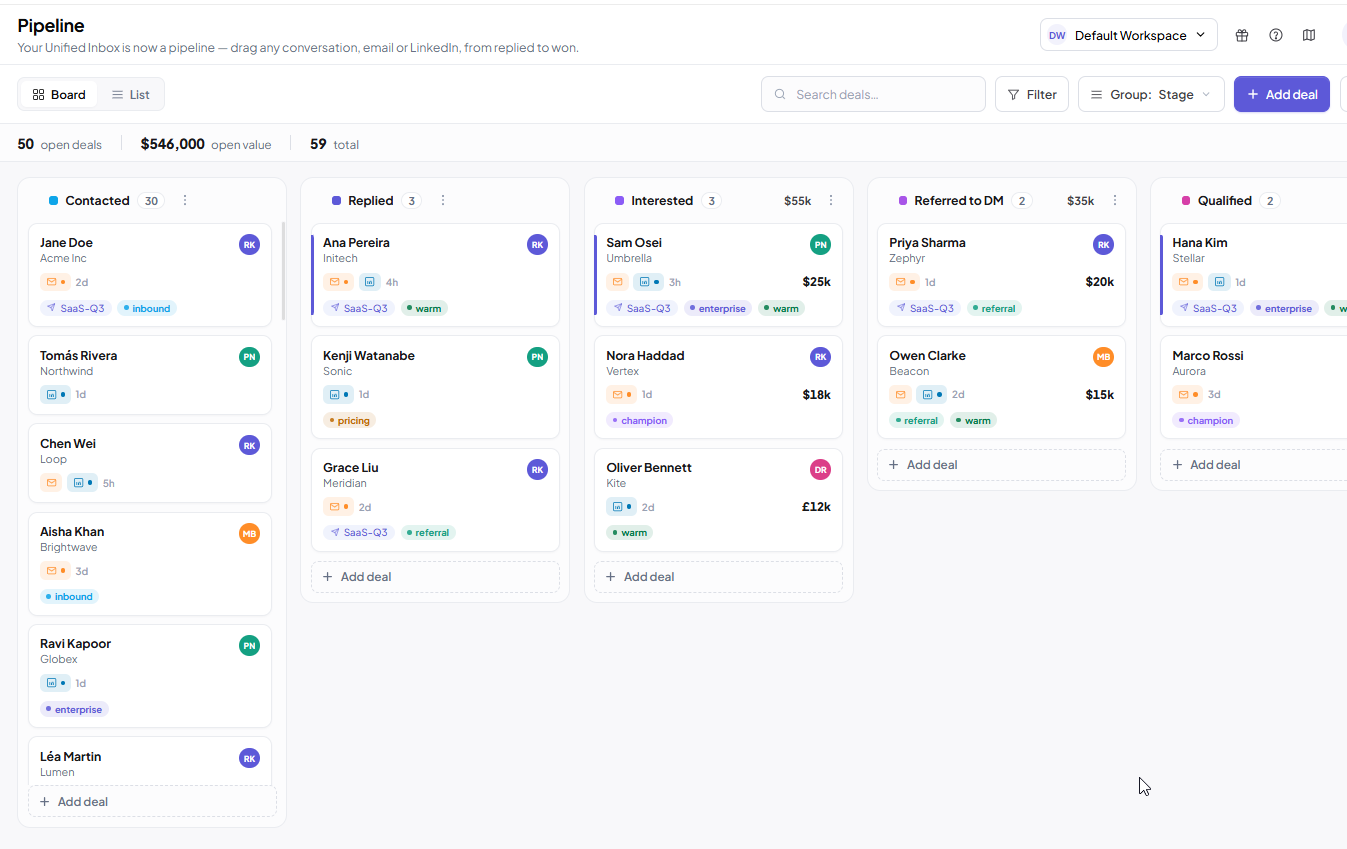
Board View – A Kanban-style board for visual pipeline management.
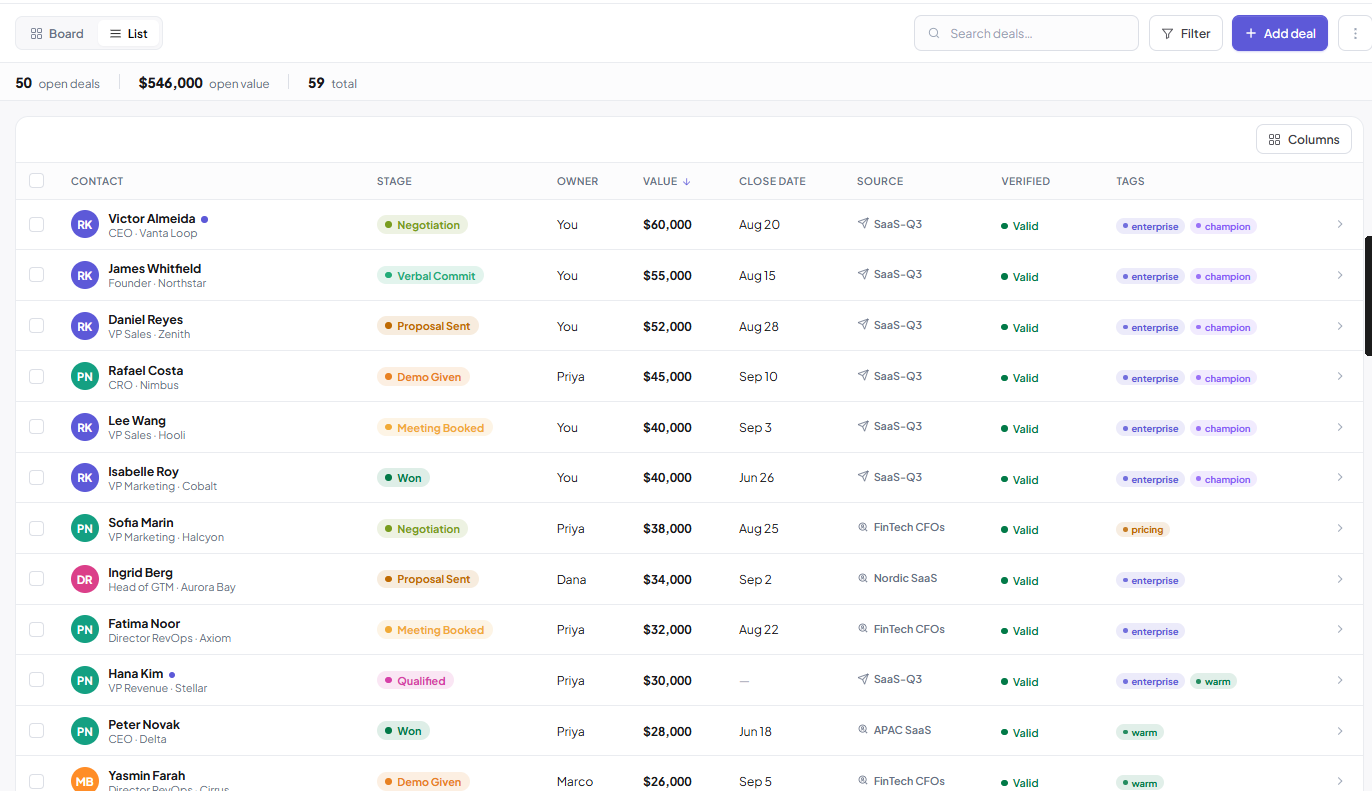
List View – A spreadsheet-style table for searching, sorting, and bulk actions.
Board View
Understanding Pipeline Stages
By default, every workspace includes the following sales stages:
Contacted
Replied
Interested
Referred to Decision Maker
Qualified
Meeting Booked
Demo Given
Proposal Sent
Negotiation
Verbal Commit
Closed stages include:
Won
Lost
Disqualified
Deferred
You can customize the names, colors, and order of most stages to match your sales process.
How deals enter your Pipeline
Deals can be created automatically from multiple sources.
A deal is added when:
A lead is contacted through a campaign.
A lead replies to your outreach.
Leads are imported from Lead Finder.
Leads are imported via CSV.
You manually add a lead.
For example:
A newly contacted lead appears in Contacted.
When the lead replies, it automatically moves to Replied (unless you've already assigned another stage).
Move a deal to another stage
Updating deal stages helps you track where every opportunity stands.
Using Board View
Open Pipeline.
Locate the deal card.
Drag the card into another stage.
The deal is updated immediately.
A confirmation message appears, allowing you to undo the change if needed.
Using the Deal Details panel
You can also update the stage without dragging cards.
Open the deal.
Change the Stage field.
Save your changes.
The Pipeline and Unified Inbox will both reflect the updated stage automatically.
Close a deal
When a deal reaches its final outcome, move it into one of the closing stages.
Available closing stages:
Won
Lost
Disqualified
Deferred
If you move a deal into Lost, Disqualified, or Deferred, Outboundry will ask you to select the appropriate reason before completing the update.
This helps keep your sales reporting accurate.
View deal details
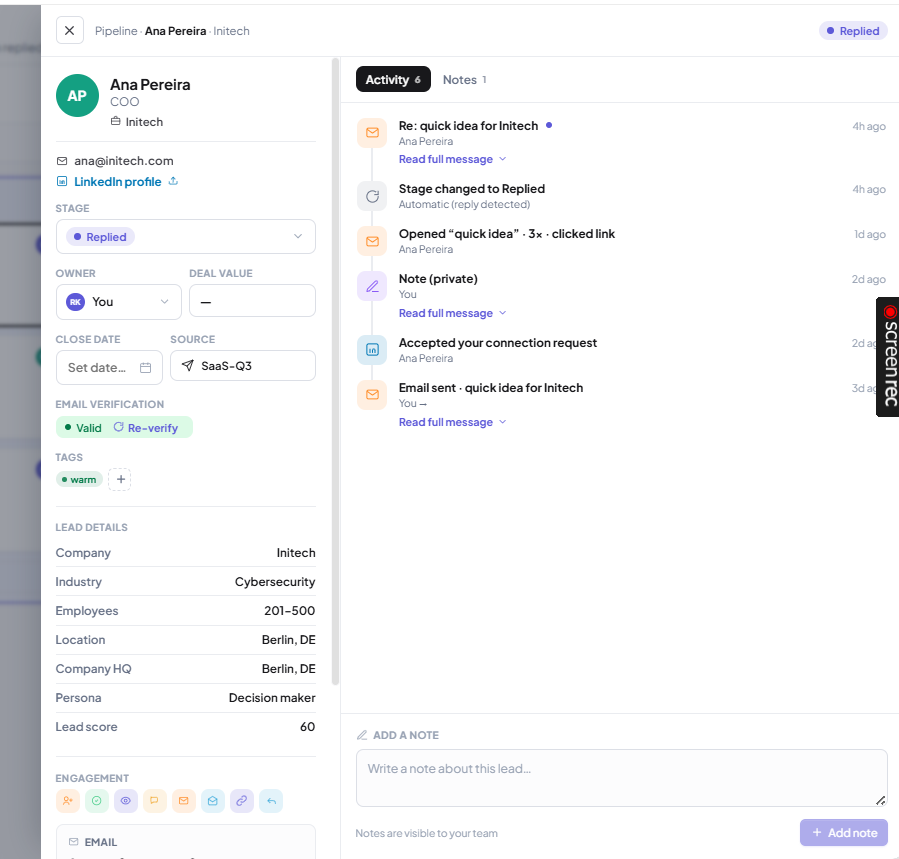
Click any deal card to open the Deal Details panel.
From here you can:
View lead information
Update deal information
Change the pipeline stage
Review previous outreach
View LinkedIn and email activity
Add internal notes
Review the activity timeline
Everything related to the lead is available in one place.
Deal View
Search your Pipeline
Use the search bar to quickly locate deals by:
Name
Company
Job title
Search results update instantly as you type.
Filter deals
Filters help you focus on the opportunities that matter.
You can filter by:
Pipeline stage
Lead status
Owner
Tags
Other available properties
Multiple filters can be combined to create more targeted views.
Group your Pipeline
Board View can be grouped in different ways.
Available grouping options include:
Stage
Lead Status
Owner
Tag
Changing the grouping reorganizes your board instantly.
Manage deals in bulk
List View makes it easy to update multiple deals at once.
Select one or more deals and perform bulk actions such as:
Change stage
Assign owner
Add tags
Export selected deals
Delete deals
This saves time when managing large numbers of opportunities.
List View
Export your Pipeline
You can export your Pipeline as a CSV file at any time.
To export:
Open Pipeline.
Apply any filters if needed.
Click Export CSV.
The exported file includes only the deals currently visible in your selected view.
How the Pipeline syncs with the Unified Inbox
The Pipeline and Unified Inbox share the same lead stage.
For example:
Moving a deal from Qualified to Proposal Sent in the Pipeline updates the lead stage in the Unified Inbox.
Updating a lead's stage from the Unified Inbox automatically updates the Pipeline.
There's no need to manually keep them in sync.
Good to know
Stage updates can be undone
Whenever you move a deal to another stage, Outboundry displays a confirmation with an Undo option.
Close date reminder
When moving deals into later sales stages (such as Meeting Booked or beyond), you may be prompted to add an expected close date.
If you don't have one yet, you can skip this step and update it later.
Lost deals require a reason
Moving a deal into Lost, Disqualified, or Deferred requires selecting a reason.
This helps improve reporting and pipeline insights.
Frequently Asked Questions
Do I need to configure the CRM before using it?
No. Every workspace includes a Pipeline with default stages, so you can start managing deals immediately.
Can I customize the sales stages?
Yes. You can rename, reorder, and recolor your pipeline stages to match your sales process.
The closing stages (Won, Lost, Disqualified, and Deferred) remain the final outcome stages.
How are deals created?
Deals are created automatically through campaign activity, replies, Lead Finder imports, CSV imports, or manual additions.
Can I move deals manually?
Yes. You can update a deal by dragging it in Board View or by changing its stage in the Deal Details panel.
Can I export my Pipeline?
Yes. You can export your entire Pipeline or the currently filtered view as a CSV file.
Can I send emails or LinkedIn messages directly from the Pipeline?
Not directly.
The Pipeline is designed for managing opportunities and tracking progress. Email and LinkedIn conversations are handled through the Unified Inbox and your campaigns, while the Pipeline displays the complete communication history for each lead.