
Outboundry allows you to import leads directly from your LinkedIn Sales Navigator search results and instantly use them in your outreach campaigns.
This helps you target the right ICP without manually exporting or uploading lead lists.
✅ Prerequisites
Before you start, make sure:
You have an active LinkedIn Sales Navigator account connected to Outboundry.
You already have a Sales Navigator search ready (filters applied as needed).
🚀 Step-by-Step Guide
Step 1: Open LinkedIn Sales Navigator
Log in to your LinkedIn account.
Go to Sales Navigator.
Navigate to the Lead Search tab.
-
Apply your desired filters such as:
Industry
Geography
Company size
Job title
Seniority
Keywords
Sales Navigator Search Results
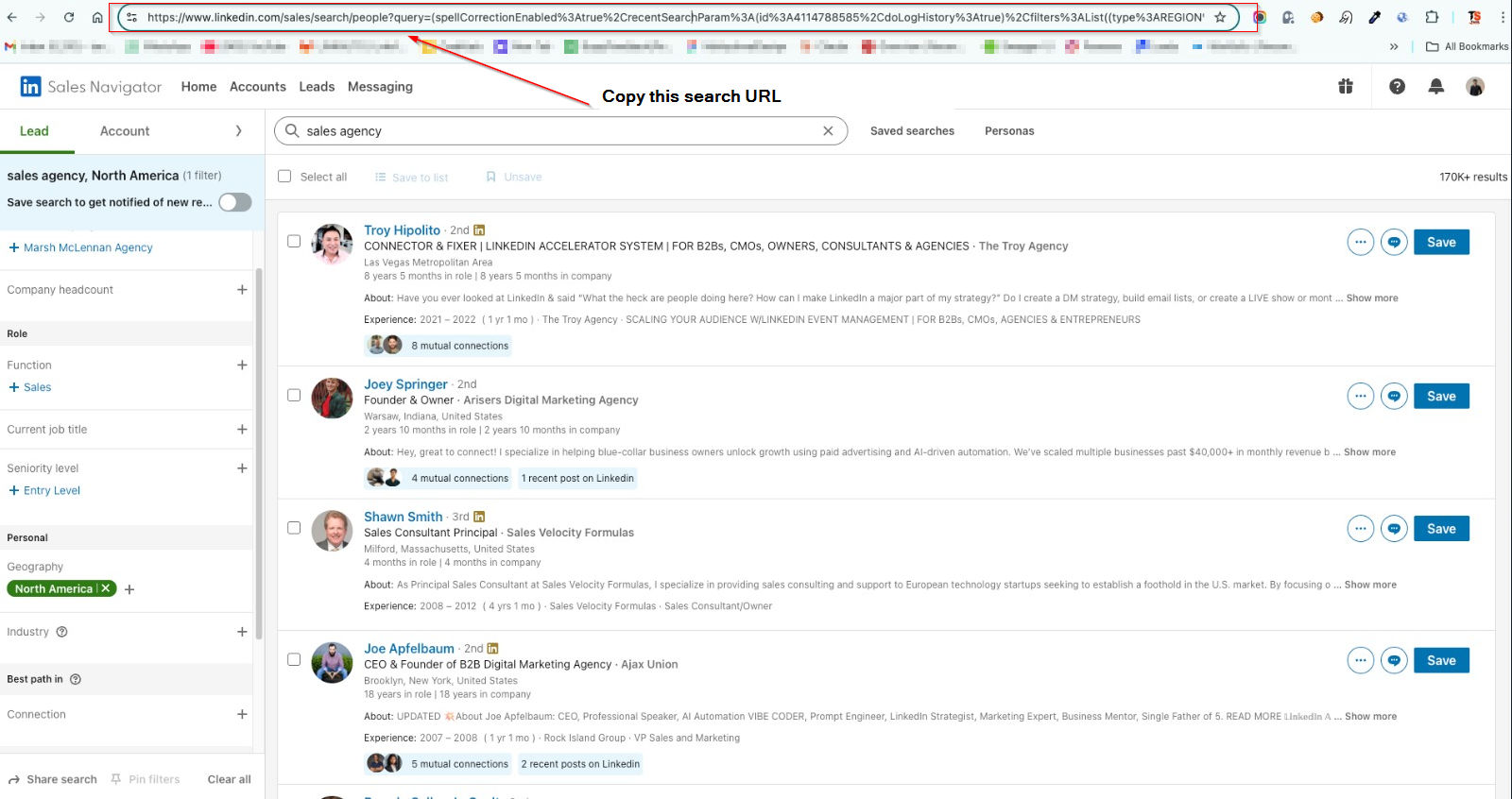
Step 2: Copy the Sales Navigator Search URL
Once your search results are ready:
Look at the browser address bar.
Copy the full URL of the Sales Navigator search page.
Example format:
https://www.linkedin.com/sales/search/people?query=...
👉 Make sure you copy the entire URL exactly as shown in the address bar.
Step 3: Paste the URL into Outboundry
Log in to your Outboundry dashboard.
Go to Campaigns.
Open an existing campaign or create a new one.
Click Add Leads → Select Import from Sales Navigator Search.
Paste the copied Sales Navigator search URL.
Click Import Leads.
Outboundry will automatically start fetching leads from the search results.
Step 4: Review Imported Leads
Once the import is completed:
You will see the leads appear inside your campaign’s Leads tab.
-
Lead details such as:
Name
LinkedIn profile URL
Job title
Company
Location
will be automatically captured.
You can now:
Assign them to sequences
Personalize outreach
Start automation
⚡ Important Notes & Best Practices
✔ Pagination Handling
Outboundry automatically scrolls and loads multiple pages from your Sales Navigator search to fetch more leads.
Tip: Narrow down your search filters to improve lead quality and avoid importing unnecessary profiles.
✔ LinkedIn Usage Limits
LinkedIn has daily activity limits. Importing very large searches may take time and will be processed safely in the background.
✔ Duplicate Handling
If a lead already exists in your workspace or campaign:
Outboundry automatically prevents duplicate imports.
✔ Supported Account Types
This import method works only with:
✅ LinkedIn Sales Navigator accounts
For standard LinkedIn search, use the LinkedIn Search Import option instead.
❓ Troubleshooting
🔹 Import is not starting?
Make sure you copied the correct Sales Navigator URL.
Ensure you are logged into LinkedIn in the same browser.
Refresh Outboundry and retry.
🔹 No leads imported?
Check if the Sales Navigator search actually has results.
Some filters may restrict visibility.
Try a smaller search first.
🔹 Getting authentication errors?
Reconnect your LinkedIn account inside Outboundry.
Make sure your LinkedIn session is active.
🙌 Need Help?
If you face any issues while importing leads, feel free to reach out to our support team or use the in-app chat. We’re happy to help you get started 🚀